








AI image generators have changed the way people create visual content. You no longer need advanced Photoshop skills or professional photography equipment to create a product image, blog illustration, social media graphic, realistic scene, concept art, or marketing visual.
Tools such as ChatGPT, Gemini, Microsoft Copilot, Midjourney, Leonardo AI, Adobe Firefly, and other AI image generators can turn a simple description into an image within seconds.
However, getting a good result is not always as simple as typing a few words.
The quality of an AI-generated image often depends on how clearly you describe what you want. This guide explains the basic and advanced techniques you can use to create better AI images, regardless of which image generator you choose.
What Is AI Image Generation?
AI image generation is the process of using artificial intelligence to create or modify images based on a written description, reference image, or other instructions.
For example, instead of hiring a photographer to create a picture of a laptop on a modern office desk, you could write:
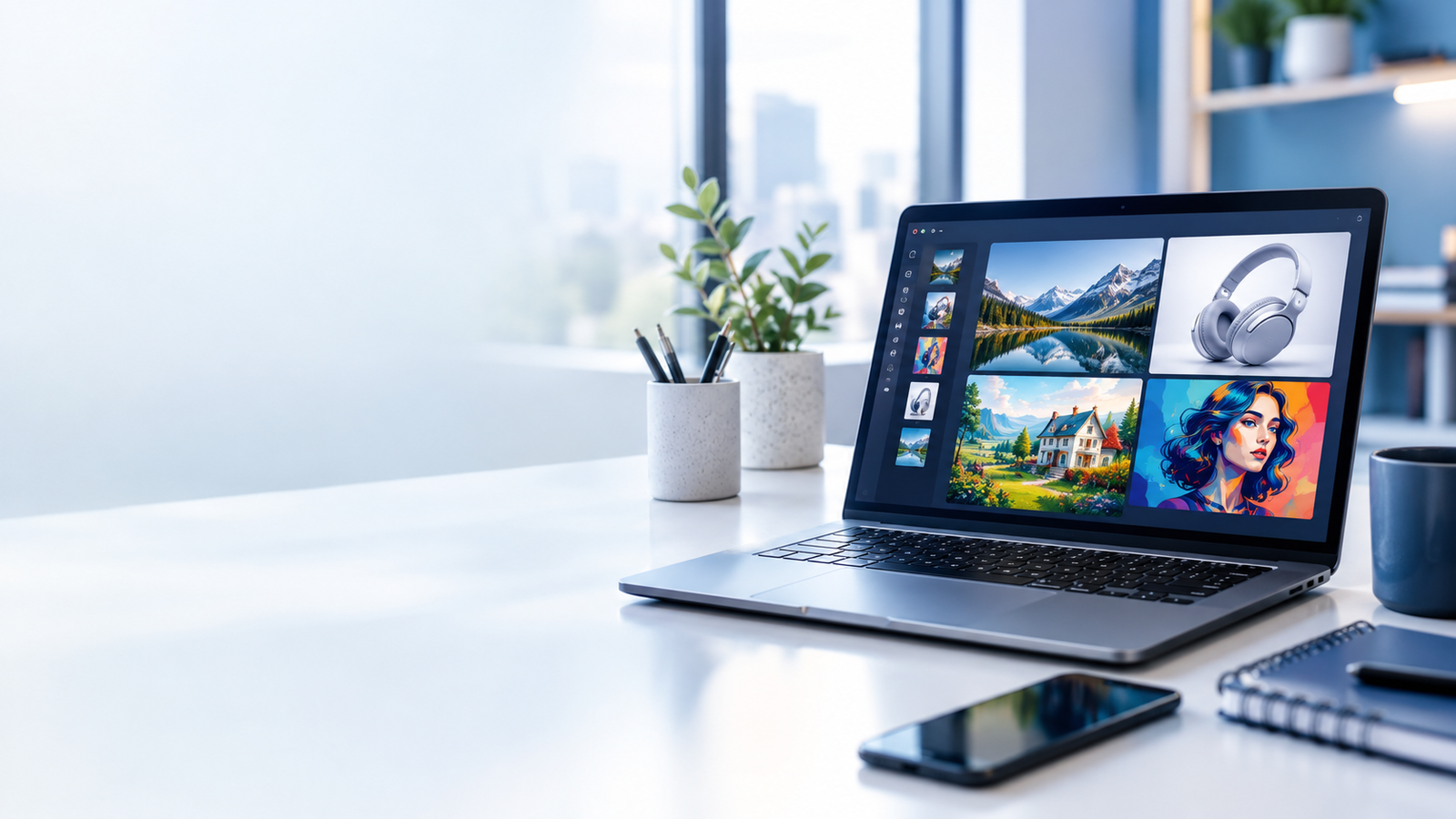
A realistic modern laptop on a clean office desk, soft morning light coming through a large window, professional technology workspace, natural colors, shallow depth of field, realistic photography.
The AI interprets these instructions and generates an image matching the description as closely as possible.
Different AI tools use different models and interfaces, but the fundamental principle is similar: you describe the visual result you want, and the AI attempts to create it.
The Most Important Rule: Be Specific
One of the biggest mistakes beginners make is writing prompts that are too short.
For example:
Weak prompt:
A laptop.
This gives the AI enormous freedom to decide what the laptop, environment, lighting, camera angle, and overall style should look like.
A better prompt would be:
A premium silver laptop open on a clean white office desk, modern minimalist workspace, soft natural window light, realistic product photography, front three-quarter angle, subtle shadows, sharp details, clean professional composition, 16:9.
The second prompt gives the AI much more useful information.
A simple formula
You can think about an image prompt like this:
Subject + Environment + Action + Style + Composition + Lighting + Camera + Details + Aspect Ratio
You don’t always need every element, but this formula is an excellent starting point.
1. Clearly Describe the Main Subject
Start by explaining what should appear in the image.
The subject could be:
- A person
- Product
- Building
- Car
- Animal
- Smartphone
- Laptop
- Food
- Landscape
- Room
- Business scene
- Historical scene
- Fantasy environment
- Technology concept
Instead of:
A man using a laptop
Try:
A young professional man working on a laptop at a modern office desk.
You can make it even more specific:
A young professional man wearing a navy business shirt, working on a silver laptop at a modern office desk.
The more important the subject is to the image, the more detail you should provide.
2. Describe the Environment
Don’t describe only the subject. Tell the AI where the subject is located.
For example:
A woman using a laptop.
is less specific than:
A woman using a laptop in a bright modern home office with a wooden desk, indoor plants, and large windows.
The environment helps establish the story and visual context.
Useful environment descriptions
You can use phrases such as:
- Modern office
- Minimalist bedroom
- Luxury hotel lobby
- Busy city street
- Cozy coffee shop
- Modern kitchen
- Technology laboratory
- Outdoor market
- Professional studio
- Home workspace
- Futuristic office
- Dark cinematic environment
3. Explain What Is Happening
If your image contains people, animals, vehicles, or objects doing something, explain the action.
For example:
A delivery driver carrying a package toward a customer’s front door.
Or:
A businessman presenting a technology dashboard to a small team in a modern conference room.
Action makes an image more dynamic and can help communicate a story.
4. Choose the Visual Style
Style is one of the most powerful parts of an image prompt.
You can specify whether you want the image to look like:
- Realistic photography
- Editorial photography
- Cinematic photography
- Studio photography
- Product photography
- Fashion photography
- Architectural photography
- Digital illustration
- Flat illustration
- 3D render
- Watercolor
- Oil painting
- Pencil sketch
- Concept art
- Anime-inspired artwork
- Vintage photography
- Futuristic concept art
For a technology website, phrases such as:
realistic technology editorial photography
or
clean modern technology illustration
can work well.
5. Tell the AI How Realistic You Want It
If you want a realistic image, say so directly.
Useful terms include:
- Photorealistic
- Highly realistic
- Natural-looking
- Real-world photography
- Realistic skin texture
- Natural lighting
- Authentic materials
- Realistic shadows
- Professional photography
- Editorial photography
- Documentary photography
For example:
Photorealistic professional technology photography with natural lighting and realistic materials.
Avoid adding dozens of unnecessary quality words such as “ultra mega super realistic 100K 500K 900K.” More words do not automatically create a better image.
6. Control the Lighting
Lighting can completely change the appearance of an image.
You can specify:
- Soft natural light
- Golden-hour lighting
- Morning sunlight
- Sunset lighting
- Studio lighting
- Dramatic lighting
- Low-key lighting
- High-key lighting
- Neon lighting
- Soft window light
- Backlighting
- Side lighting
- Moody lighting
Example
Soft natural window light falling from the left side, gentle shadows, warm professional atmosphere. For realistic images, natural and physically believable lighting usually produces better results than adding many conflicting lighting instructions.
7. Specify the Camera Angle
Camera position is especially useful for photography-style images.
You can request:
- Front view
- Side view
- Three-quarter view
- Top-down view
- Low-angle view
- High-angle view
- Eye-level view
- Close-up
- Medium shot
- Wide shot
- Over-the-shoulder shot
Example
Three-quarter front view at eye level.
For products:
Clean three-quarter product view with the entire product visible.
For architecture:
Wide-angle exterior view showing the entire building.
8. Use Composition Instructions
Composition tells the AI how objects should be arranged in the frame.
Useful instructions include:
- Subject centered
- Subject positioned on the right
- Subject positioned on the left
- Large negative space
- Balanced composition
- Symmetrical composition
- Rule of thirds
- Foreground, middle ground, and background
- Subject clearly separated from background
Example
Place the laptop on the right side of the frame and leave clean negative space on the left for website text.
This is particularly useful when creating blog featured images, advertisements, thumbnails, and social media graphics.
9. Use Negative Space for Text
If you’re creating a featured image for a blog post, don’t ask the AI to fill every part of the image.
Instead, tell it:
Keep the left side of the image clean with generous negative space for a website headline.
This gives you room to add your own title later using WordPress, Canva, Photoshop, or another editor.
This is often better than asking the AI to create the entire headline inside the image.
10. Choose the Correct Aspect Ratio
Aspect ratio describes the shape of the image.
Common choices include:
16:9
Excellent for:
- Blog featured images
- YouTube thumbnails
- Website banners
- Technology articles
- Presentations
1:1
Useful for:
- Instagram posts
- Product images
- Profile graphics
- Square social media content
4:5
Useful for:
- Instagram portrait posts
- Social media graphics
9:16
Useful for:
- TikTok
- Instagram Stories
- YouTube Shorts
- Mobile vertical content
Always choose the aspect ratio based on where you plan to use the image.
11. Don’t Overload Your Prompt
More words do not automatically mean a better image.
A common beginner mistake is creating a prompt containing 300 unrelated instructions.
For example:
cinematic, realistic, ultra detailed, 8K, colorful, dramatic, beautiful, professional, futuristic, realistic photography, digital art, watercolor, 3D, oil painting…
The problem is that some instructions contradict each other.
For example, asking for:
realistic photography + watercolor + 3D render + oil painting
creates an unclear visual direction.
Better approach
Choose one primary visual style.
For example:
Realistic professional technology photography with soft natural lighting.
Clear instructions usually work better than a collection of random keywords.
12. Avoid Contradictory Instructions
AI image generators can struggle when instructions conflict.
For example:
Dark environment with bright daylight everywhere.
or:
Close-up showing the entire building from far away.
Instead, decide what you actually want.
Better:
A wide exterior view of the entire building during early morning with soft daylight.
13. Be Careful With Text Inside Images
Text generation has improved significantly, but AI image generators can still make spelling mistakes, strange letters, or distorted typography.
If the image requires an exact headline, logo, price, phone number, or detailed paragraph, consider generating the image without the text and adding the text afterward.
For example:
Create a clean technology-themed background with empty space at the top for a headline. No text.
Then add the actual headline using your design software.
14. Tell the AI What NOT to Include
Sometimes you need to specify unwanted elements.
For example:
No watermark, no logo, no readable text, no extra people, no distorted objects.
Depending on the AI tool, this can help reduce unwanted elements.
Some dedicated image generators also provide a separate negative prompt field.
A negative prompt might include:
blurry, distorted hands, duplicate objects, extra fingers, malformed face, watermark, unwanted text, cropped subject.
However, negative prompts are not supported or interpreted in exactly the same way by every AI system.
15. Use Reference Images When Possible
If you need the AI to follow a particular appearance, reference images can be extremely useful.
You might provide:
- A product photograph
- Room photograph
- Character reference
- Clothing reference
- Architecture reference
- Color reference
- Composition reference
Then explain what you want changed.
For example:
Use this image as a reference for the room layout. Keep the overall architecture but change the furniture to a modern minimalist style.
This is often more reliable than trying to describe every visual detail using text.
16. Separate “What to Keep” and “What to Change”
When editing an existing image, be very clear.
Instead of:
Make it better.
Try:
Keep the person’s face, clothing, pose, background architecture, and camera angle unchanged. Replace only the laptop with a modern silver laptop and improve the lighting slightly.
This reduces unwanted changes.
17. Use Specific Colors
If color matters, specify it.
Instead of:
A blue car.
Try:
A deep metallic navy-blue sedan with subtle reflections.
For brand-related designs, you can provide specific color values when supported:
Use a clean white background with accents approximately matching #1E88E5.
Keep in mind that generated colors may not always be exact, so final brand colors should be adjusted in your design software if precision matters.
18. Describe Materials
Material descriptions can significantly improve product images.
For example:
- Brushed aluminum
- Matte plastic
- Glossy glass
- Natural wood
- Stainless steel
- Leather
- Ceramic
- Carbon fiber
- Polished metal
Instead of:
A modern coffee machine.
Try:
A premium stainless-steel coffee machine with a matte black control panel and subtle brushed-metal texture.
19. Use Depth of Field Carefully
For photography-style images, you can describe the focus.
Examples:
Sharp subject with a softly blurred background.
or:
Shallow depth of field with the product in sharp focus and the office background gently blurred.
This is useful for product photography, portraits, food photography, and editorial images.
20. Tell the AI What Should Be in Focus
If there are several objects, tell the AI which one matters most.
Example:
The smartphone should be the primary focus, with the person and office environment slightly blurred in the background.
This helps establish visual hierarchy.
21. Create Better Product Images
AI is particularly useful for product concept images and marketing scenes.
A strong product prompt could follow this structure:
Product + material + environment + camera + lighting + composition + background
Example
A modern wireless keyboard made from premium dark gray aluminum, placed on a clean minimalist office desk, professional product photography, three-quarter angle, soft studio lighting, subtle realistic shadows, sharp product details, uncluttered background, 16:9.
If you are using a real product, provide a reference image when possible.
22. Create Better Blog Featured Images
For a technology website, a featured image should communicate the article topic quickly.
For example, an article about Generative AI could use:
A realistic modern technology workspace showing a laptop generating colorful abstract digital visuals, subtle AI-inspired interface elements on the screen, professional editorial technology photography, dark-to-light gradient atmosphere, clean composition, subject positioned on the right, generous negative space on the left for the article title, 16:9, no readable text, no logos. This approach works particularly well for TechInviter articles.
23. Create Images for Social Media
Social media images should usually be visually simple.
Don’t put too many objects into one image.
Instead of:
Create a complicated image showing AI, smartphones, robots, computers, cars, business people, charts, satellites, and a city.
Use a single visual concept.
For example:
A professional businessman interacting with a futuristic AI assistant displayed on a large transparent screen, modern office environment, realistic editorial photography, dramatic but natural lighting, clean composition, 4:5.
One strong concept is often more effective than ten unrelated concepts.
24. Generate Consistent Characters
Creating the exact same character across many images can be challenging.
Start with a detailed character description.
For example:
A 35-year-old professional man with short dark brown hair, medium skin tone, brown eyes, neatly trimmed beard, wearing a navy business shirt.
Then reuse the same description in subsequent prompts.
If your AI tool supports character/reference images, use the same reference image whenever possible.
For important projects, consistency improves when you keep the following details stable:
- Age
- Hair
- Face
- Clothing
- Body type
- Colors
- Accessories
- Art style
- Camera style
25. Keep Important Details Consistent
If you’re generating multiple images for the same project, create a small “visual specification.”
For example:
Character: 35-year-old man, short dark hair, trimmed beard
Clothing: Navy business shirt
Style: Realistic editorial photography
Lighting: Soft natural light
Color palette: White, blue, gray
Aspect ratio: 16:9
Reuse these instructions throughout the project.
26. Use AI to Improve Your Prompt
You don’t have to write the perfect prompt yourself.
You can ask ChatGPT, Gemini, Claude, or another AI assistant:
Improve this image prompt while keeping my original idea. Make it suitable for a realistic 16:9 technology website featured image. Do not add text or logos.
The AI can turn your basic idea into a more structured prompt.
27. Generate Multiple Variations
Don’t always accept the first image.
If the tool supports variations, ask for different versions.
For example:
Create three different compositions using the same concept: one centered, one with the subject on the left, and one with the subject on the right.
This helps you find the version that works best for your website.
28. Change One Thing at a Time
When an image is almost correct, don’t rewrite the entire prompt.
Instead, identify the problem.
For example:
Keep everything unchanged, but make the laptop 20% larger.
Or:
Keep the composition unchanged. Replace the background with a modern office.
This makes iterative editing much easier.
29. Don’t Ask for Everything at Once
If you need a highly complicated image, break the process into stages.
For example:
- Generate the main scene.
- Fix the composition.
- Adjust the character.
- Change the background.
- Add final details.
- Upscale or enhance the image.
This can produce better results than trying to describe everything in one enormous prompt.
30. Use Camera Language Carefully
Photography terminology can help when the AI understands it.
Useful terms include:
- Wide-angle lens
- Macro photography
- Telephoto perspective
- Shallow depth of field
- Eye-level shot
- Low-angle shot
- High-angle shot
- Close-up
- Medium shot
- Wide shot
- Overhead shot
However, don’t add camera terminology simply because it sounds professional.
Only use it when it helps communicate the visual result you want.
31. Use “Editorial Photography” for Professional Website Images
If you want images that feel suitable for a technology publication, try terms such as:
professional editorial technology photography
This can produce a more natural and publication-oriented appearance than simply saying:
futuristic AI image.
For TechInviter, this style can work especially well for technology news, AI guides, software articles, and business content.
32. Use “Clean Minimalist” for Website Graphics
Websites can become visually cluttered when images contain too many elements.
Try:
clean minimalist composition, limited visual elements, professional technology aesthetic.
This is especially useful for featured images.
33. Don’t Always Use “Futuristic”
AI-generated technology images often become unnecessarily futuristic.
Not every technology article needs glowing blue holograms, robots, neon lights, and sci-fi interfaces.
For a professional technology website, sometimes a realistic scene works better.
For example:
A real-world business professional using an AI assistant on a laptop in a modern office.
This may communicate “AI for business” more effectively than a giant glowing robot.
34. Avoid the Generic AI Look
A common AI image style includes:
- Blue glowing backgrounds
- Floating holograms
- Random circuit patterns
- Robots
- Glowing brains
- Human hands touching holographic screens
These visuals can become repetitive.
Instead, connect the image directly to the article.
For example, for an article about AI productivity:
A professional working at a laptop while an AI assistant organizes documents, summarizes information, and creates a structured task list on screen.
This tells a clearer story.
35. Use Real-World Context
The best image is not necessarily the most spectacular one.
Ask:
What would a real photographer photograph if they were covering this story?
For example, an article about AI in education could show:
A university student studying at a desk with a laptop displaying an AI research assistant, notebooks beside the laptop, natural afternoon window light, realistic editorial photography.
This is more meaningful than simply generating a glowing AI brain.
36. Use Specific Backgrounds
A vague background can produce unpredictable results.
Instead of:
Nice background.
Use:
Clean modern office with white walls, light wooden desk, subtle indoor plant, large window, softly blurred background.
Specific details help the model understand the environment.
37. Avoid Unnecessary Quality Keywords
Words such as:
- 8K
- 16K
- Ultra HD
- Masterpiece
- Best quality
- Insanely detailed
may not improve the actual image in every AI system.
A stronger prompt focuses on what you actually want to see.
Instead of:
8K ultra masterpiece best quality laptop
write:
Realistic premium laptop photographed in a professional studio with sharp product details, controlled soft lighting, realistic reflections, and subtle shadows.
38. Understand That Different AI Tools Behave Differently
There is no single prompt format that works perfectly across every AI image generator.
ChatGPT
Useful for conversational image creation, editing, and refining an idea through multiple instructions.
You can describe the desired image naturally and then make changes through follow-up instructions.
Gemini
Useful for conversational image generation and image-related workflows within Google’s ecosystem. Clear natural-language instructions can be effective.
Microsoft Copilot
Useful for users who want straightforward image generation through Microsoft’s AI ecosystem. Detailed prompts generally provide more control than very short prompts.
Midjourney
Known for strong artistic and visual results. Prompt wording, parameters, image references, and style controls can have significant effects on the output.
Leonardo AI
Offers a range of image-generation and creative controls and can be useful for artwork, concepts, characters, and marketing visuals.
Adobe Firefly
Particularly useful for creative workflows connected to Adobe’s ecosystem, including image generation and editing.
The important lesson
Don’t assume that a prompt producing an excellent result in one tool will produce exactly the same result in another.
Test, adjust, and learn the behavior of the specific model you’re using.
39. Give the AI a Clear Priority
If your prompt contains many requirements, tell the AI what matters most.
For example:
The smartphone is the main subject. It must remain fully visible and sharply focused. The office environment should support the scene without distracting from the phone.
This creates a clear visual hierarchy.
40. Use a Prompt Structure for Complex Images
For complicated projects, use a structured prompt.
Example:
Subject: Premium laptop
Environment: Modern home office
Action: Person working on the laptop
Style: Realistic editorial photography
Lighting: Soft morning window light
Composition: Laptop on right, person slightly behind it
Background: Minimal and softly blurred
Mood: Professional and productive
Aspect ratio: 16:9
Avoid: Logos, watermarks, unreadable text, distorted hands
This is much easier to manage than randomly adding words.
41. Prompt Template for Realistic Photography
Use this template:
Create a realistic [subject] in [environment]. The subject is [action/pose]. Use [lighting] with [camera angle/composition]. The visual style should be [photography style]. Include realistic [materials/details]. Keep the background [description]. [Aspect ratio]. No [unwanted elements].
42. Prompt Template for Blog Featured Images
Create a professional 16:9 featured image for a technology article about [TOPIC]. Show [MAIN VISUAL CONCEPT]. Use a clean modern technology editorial style, realistic lighting, professional composition, and visually clear subject hierarchy. Place the main subject on the [left/right] side and leave clean negative space on the opposite side for a headline. No readable text, no logos, no watermark.
43. Prompt Template for Product Photography
Create a professional product photograph of [PRODUCT]. The product is made of [MATERIAL] and has [IMPORTANT FEATURES]. Place it on [SURFACE/ENVIRONMENT]. Use [LIGHTING] and a [CAMERA ANGLE] composition. Keep the product sharply focused with realistic materials, reflections, shadows, and proportions. Clean background, premium commercial photography style, [ASPECT RATIO]. No logo changes, no watermark, no unnecessary objects.
44. Prompt Template for Social Media
Create a visually engaging [ASPECT RATIO] social media image about [TOPIC]. Show [MAIN SUBJECT]. Use [STYLE], [LIGHTING], and [COLOR PALETTE]. Keep the composition clean and easy to understand at a glance. Make the main subject prominent and leave space for optional text overlay. No watermark and no unnecessary elements.
45. Prompt Template for AI Technology Articles
Create a professional editorial technology image representing [TOPIC]. Show [MAIN CONCEPT] in a realistic modern environment. Use natural lighting, realistic materials, subtle technology elements, clean composition, and a premium technology publication aesthetic. Avoid generic futuristic robots and excessive holograms. Leave negative space for a headline. 16:9, no readable text, no logos, no watermark.
46. Prompt Template for Editing an Image
Edit the provided image while preserving [ELEMENTS TO KEEP]. Change only [ELEMENT TO CHANGE]. Keep the original composition, camera angle, subject identity, proportions, and lighting unless specifically instructed otherwise. Make the change look natural and photorealistic. Do not add text, logos, or additional objects.
47. Prompt Template for Improving an Existing Image
Improve the provided image while keeping the original subject, composition, proportions, and overall appearance. Increase clarity and visual quality, correct distracting artifacts, improve natural lighting and detail, and maintain a realistic appearance. Do not change the person’s identity, product design, or important visual elements.
48. Common AI Image Problems and Solutions
Problem: Strange hands
Try:
Natural human hands with anatomically correct fingers and realistic proportions.
If the tool supports image editing, regenerate or edit the affected area.
Problem: Extra objects
Try:
Include only the specified objects. Do not add additional people or objects.
Problem: Wrong composition
Specify exactly where the subject should be:
Place the laptop on the right third of the image with clear negative space on the left.
Problem: Image looks too artificial
Try:
Photorealistic editorial photography, natural lighting, realistic materials, authentic proportions, subtle imperfections.
Problem: Too much futuristic styling
Try:
Real-world contemporary environment. Avoid excessive holograms, glowing effects, robots, and sci-fi elements.
Problem: Text is incorrect
Generate the image without text and add the text afterward.
Problem: Subject is cropped
Add:
Show the complete subject with sufficient margin around all sides. Do not crop the main subject.
49. A Simple Three-Level Prompting System
You don’t always need a complicated prompt.
Level 1 — Basic
A professional working on a laptop in an office.
Good for quickly exploring ideas.
Level 2 — Detailed
A professional working on a silver laptop in a modern office, soft natural window light, realistic editorial photography, shallow depth of field, clean background, 16:9.
Better for most everyday tasks.
Level 3 — Controlled
A professional man wearing a navy business shirt working on a silver laptop at a light wooden desk in a modern office. Soft natural window light enters from the left. Eye-level three-quarter camera angle. The laptop is the primary focus and is positioned on the right third of the frame. Background softly blurred. Realistic editorial technology photography, natural skin tones, realistic materials, subtle shadows, clean professional atmosphere, 16:9. Leave generous negative space on the left for a website headline. No readable text, logos, watermark, extra people, or unnecessary objects. Use Level 3 when the image needs to match a specific purpose.
50. The “Five Questions” Trick
Before writing a prompt, answer five questions:
1. What?
What should appear?
2. Where?
Where is it?
3. What is happening?
What is the subject doing?
4. How should it look?
Realistic, illustration, cinematic, product photography, etc.
5. Where will I use it?
Website, YouTube, Instagram, advertisement, presentation, etc.
These five questions can turn a vague idea into a useful prompt.
51. The “Keep, Change, Add, Remove” Method
When editing an existing AI image, use four simple instructions:
Keep: What must remain unchanged?
Change: What should be modified?
Add: What new element should appear?
Remove: What should disappear?
Example
Keep the person, clothing, pose, and office. Change the laptop to a tablet. Add a coffee cup to the desk. Remove the plant from the background.
This is an excellent method for conversational image editing.
52. Don’t Chase Perfection in One Generation
AI image generation is often an iterative process.
Think of it like working with a designer:
Idea → First generation → Review → Correction → Refinement → Final image
The first image does not have to be perfect.
Look for the biggest problem and fix that problem first.
53. Check the Image Before Publishing
Before adding an AI-generated image to your website, inspect:
- Hands
- Faces
- Eyes
- Fingers
- Text
- Logos
- Product proportions
- Objects
- Reflections
- Shadows
- Background
- Cropped elements
- Strange artifacts
- Unwanted people
- Incorrect branding
AI images can look excellent at first glance but contain obvious mistakes when viewed closely.
54. Be Careful With Real People
When generating images involving real people, especially public figures or private individuals, consider privacy, consent, impersonation, and platform rules.
Avoid creating misleading images that could make viewers believe a person actually did something they never did.
For professional content, fictional or generic people are often safer when the real person’s identity isn’t important.
55. Be Careful With Logos and Trademarks
If you need a specific company’s logo or branded product, AI-generated logos may be inaccurate.
For professional work, use official brand assets where you have permission rather than relying on AI to reproduce a logo.
The same applies to:
- Company names
- Product packaging
- Brand marks
- App icons
- Corporate identities
56. Think About Copyright and Usage Rights
Before using an AI-generated image commercially, check the current terms of the AI service you’re using.
Different platforms can have different rules regarding:
- Commercial use
- Ownership
- Generated content
- Reference images
- Uploaded content
- Trademarks
- Public figures
- Training data
- Attribution
Don’t assume that every AI-generated image has identical legal status.
For commercial websites, always review the relevant platform’s current terms and applicable laws.
57. Don’t Upload Confidential Information
Be careful when uploading images to AI services.
Don’t upload confidential:
- Customer documents
- Passwords
- Private contracts
- Financial records
- Identity documents
- Company secrets
- Sensitive business information
Check the privacy and data-handling policies of the AI service before uploading sensitive material.
58. Create a Personal Prompt Library
If you frequently generate images, save prompts that work well.
Create categories such as:
- Technology
- AI
- Business
- Product photography
- Blog featured images
- Social media
- YouTube thumbnails
- People
- Architecture
- Travel
- Food
- Backgrounds
Over time, you will build your own collection of proven prompts.
59. Create a Brand Style Guide for Your Website
If you’re generating images for the same website, consistency matters.
For example, you might decide that your website uses:
Style: Realistic editorial technology photography
Aspect ratio: 16:9
Colors: Clean white, blue, gray
Lighting: Natural or soft studio lighting
Composition: Subject on one side with negative space
Text: Added separately
Watermark: None
Visual tone: Professional, modern, practical
Then reuse this style across your articles.
This can make your website look much more professional.
60. The Best Prompt Is the One That Communicates the Result
There is no magical collection of keywords that guarantees a perfect AI image.
A good prompt communicates:
What you want + what it should look like + how it should be composed + what should be avoided.
Don’t focus on making your prompt sound complicated.
Focus on making your visual idea clear.
Quick AI Image Prompt Checklist
Before clicking Generate, ask yourself:
Subject
- What is the main subject?
- Have I described it clearly?
Environment
- Where is the scene?
- Is the background appropriate?
Action
- What is happening?
Style
- Realistic?
- Illustration?
- Cinematic?
- Product photography?
Composition
- Where should the main subject appear?
- Do I need negative space?
Lighting
- Natural?
- Studio?
- Dramatic?
- Soft?
Camera
- Close-up?
- Wide?
- Eye-level?
- Three-quarter view?
Details
- Materials?
- Colors?
- Clothing?
- Important objects?
Format
- 16:9?
- 1:1?
- 4:5?
- 9:16?
Restrictions
- No text?
- No logos?
- No watermark?
- No extra objects?
If you can answer these questions, you can usually create a much stronger image prompt.
Final Thoughts
AI image generation is becoming easier, but better results still depend heavily on how you communicate your idea.
You don’t need to become an expert prompt engineer.
Start with the subject, explain the environment, describe the visual style, control the composition, specify the lighting, choose the correct aspect ratio, and clearly explain anything that should not appear.
Most importantly, treat image generation as an iterative process.
Your first prompt is a starting point. Look at the result, identify what is wrong, and give the AI a focused correction instead of starting from scratch every time.
Once you develop a consistent prompting method and save the prompts that work well, you can create professional visuals for websites, blogs, social media, presentations, advertisements, products, and many other projects much faster than traditional image-production workflows.
The simplest formula to remember
Subject + Environment + Action + Style + Composition + Lighting + Details + Aspect Ratio + Restrictions
For example:
A professional man working on a laptop + modern office + analyzing AI data + realistic editorial photography + subject on the right with negative space on the left + soft natural window light + realistic materials and natural skin tones + 16:9 + no readable text, logos, or watermark. That’s the foundation of effective AI image prompting.